How Certified Professionals Turn a Credential Into Career Momentum
Wed, 21 October 2026

Inspirational journeys
Follow the stories of academics and their research expeditions
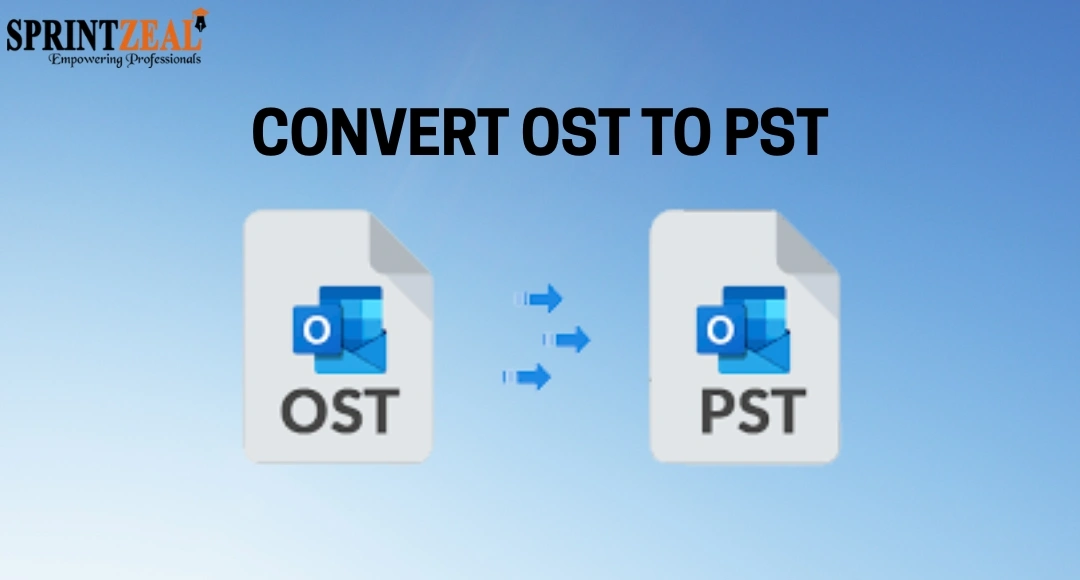
OST and PST are two data file formats used by Microsoft Outlook for storing mailbox items, depending on the type of account setup. OST file is linked to the profile in which it is created. Therefore, you cannot directly open or transfer it any other profile. On the contrary, PST file is easily transferrable. That is the primary reason why you need to convert the OST file to PST whenever you need to transfer or access the OST data in another profile or account.
Microsoft Outlook has a feature called - Import and Export that allows you to convert the OST file into PST when the outlook profile is active. But if you’re wondering how to convert OST to PST when Outlook is not opening, then you’re at the right place. In this article, we will mention a reliable OST to PST converter tool and explain how to use this tool to convert OST to PST.
Why you Need to Convert OST to PST when Outlook is not Opening?
A Simple Way to Convert OST to PST when Outlook is not Opening
Here are some common reasons for converting OST to PST:
To access mail items stored in the OST file.
To move or migrate OST file data to another profile.
To back up or archive the OST mailbox items.
To restore mail items of the inaccessible/orphaned OST file.
The only method to convert OST file to PST format, when Outlook is not opening and outlook profile is gone, by utilizing a professional OST to PST converter tool, such as Stellar Converter for OST. This tool safely converts OST files to PST format without the need for Outlook.
Below are some notable features that make Stellar Converter for OST is a reliable solution:
Converts orphaned or inaccessible OST files without any file size limitations.
Complete mailbox items recovery, including emails, attachments, contacts, and notes.
It allows batch conversion of multiple OST files.
Option to convert specific folders or items, instead of the entire OST file.
It has user-friendly interface.
It is compatible with all versions of Outlook (2007 - 2021) and Office 365
It works on Windows 11, 10, and older versions.
Maintains original structure of mailbox during conversion.
Fast and efficient conversion of large OST files.
This tool can converts encrypted OST file.
Saves OST file items to multiple formats including PST, MSG, EML, RTF, HTML, and PDF.
Below we have mentioned the step-by-step process to use this tool:
Go to the Official website.
Download and install the tool. Launch it.
Two options will appear: Profile List and Choose Mailbox Manually.
Use the Choose Mailbox Manually to select the OST file.
Click on the Convert
Click OK, when the conversion process is done.
It will display all the converted OST file items in a preview window. You can click on any item to see its enhanced preview.
Choose the items you want to save in PST file.
Click on Save Converted File and choose PST
Click on Next.
Select the Browse button to choose a location/folder to store the PST file.
Click
The converted PST file will be saved at the location selected by you. You can then import this PST file into any Outlook profile to access your OST mail items.
If Outlook is not opening or working, then you cannot convert the OST to PST using the native Outlook option – Import and Export wizard. In this situation, the only solution is to take the help of a professional OST to PST converter tool. Stellar Converter for OST is one such reliable tool that can convert orphaned or inaccessible OST files to PST by maintaining original folder structure and data integrity.
Here are some common reasons for converting OST to PST:
The only method to convert OST file to PST format, when Outlook is not opening and outlook profile is gone, by utilizing a professional OST to PST converter tool, such as Stellar Converter for OST. This tool safely converts OST files to PST format without the need for Outlook.
Below are some notable features that make Stellar Converter for OST is a reliable solution:
Below we have mentioned the step-by-step process to use this tool:
The converted PST file will be saved at the location selected by you. You can then import this PST file into any Outlook profile to access your OST mail items.
If Outlook is not opening or working, then you cannot convert the OST to PST using the native Outlook option – Import and Export wizard. In this situation, the only solution is to take the help of a professional OST to PST converter tool. Stellar Converter for OST is one such reliable tool that can convert orphaned or inaccessible OST files to PST by maintaining original folder structure and data integrity.

Wed, 21 October 2026
Thu, 15 October 2026

Wed, 14 October 2026

Tue, 13 October 2026

Wed, 07 October 2026

Fri, 02 October 2026

Wed, 30 September 2026

Tue, 29 September 2026

Fri, 25 September 2026

Tue, 22 September 2026


© 2026 Sprintzeal Americas Inc. - All Rights Reserved.

 USA : +1315-322-7821
 UK : +44 7700 174870
 IND : +919036108287
 AUS : +61 480 005 455